 LANGUAGE
 SEARCH



 Sign in
 Hello,

Frequently Asked Questions
A short description of this FAQ would go here.- No later than twenty calendar days after the date the notice was mailed or sent by electronic mail request reconsideration by submitting a case to us with the contact reason of "Notice of CTPL Contributions Due".
- After submitting a case to CT Paid Leave Authority you will receive a confirmation email to which you can reply with any additional materials or attachments as needed.
- If no such request is received by the Authority within twenty calendar days after the date of the notice, the individual/employer will be deemed to have admitted to the violation and accepted the penalty.
- Please note that it could take up to two months for us to review your inquiry and make a determination on your request for reconsideration, so please ensure your initial submission includes all information to substantiate the request.
Process Overview
A step-by-step guide to filing your claim.
Step-by-Step
-


Enter your contact information
- First Name, Last Name and Email address will prefill with information from your CT.gov account.
- Complete all mandatory fields:
- Street Address 1
- City
- State
- Postal Code
- Primary Business Contact Phone Number
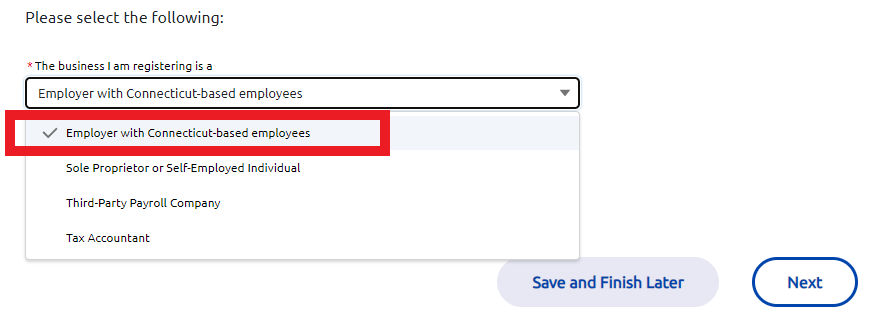
- When asked "The business I am registering is a", select Employer with Connecticut-based employees as the type of business you are registering.
- Since you are registering your own business, skip the checkbox I am a tax accountant or TPA registering on behalf of this business.
- NOTE: If you are a tax accountant or third-party administrator (TPA) registering on behalf of an employer, select Employer with Connecticut-based employees. Then, check the box I am a tax accountant or TPA registering on behalf of this business and complete the registration using your client employer’s information. (***This can only be done if you have already registered your own business as a Tax Accountant or Third Party Payroll Company).
- If your business structure is Sole-Proprietorship, but you have employees who receive a W-2, you should still select Employer with Connecticut-based employees. To opt-in as a sole-proprietor yourself, you will also need to complete a Sole-Proprietor registration.
- Select the Role/Title from the available options.
- Confirm the information entered is correct and click Next.
Save and finish later
At any time when completing the account registration form, you have the option to select save and finish later. When ready to resume your account registration, SIGN IN, and select "Resume Business Registrations" from the drop-down menu. Your saved registration forms will be available for you to resume and complete.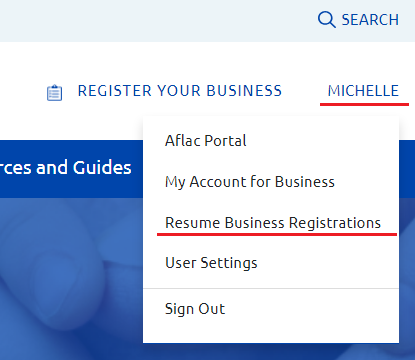
-


Connect your CT.gov account with a business
- Enter the business's FEIN and click Next.
- If the business has not been registered with CT Paid Leave, you will be prompted to enter information about the business.
- If the business has already been registered, an onscreen message will appear stating the date and the name of the person who completed the registration. You will need to contact the person who registered the business and ask them to add you as a contact on the account. Provide them with the email address you used to create your CT.gov account so they can use that same email address when adding you.
- Confirm the information entered is correct and click Next.
- Enter the business's FEIN and click Next.
- Date you first had Connecticut workers -- You will need to know the date you first had Connecticut workers when you are registering your business. This information will be used for determining the date from which contributions are required. If your business had Connecticut workers prior to Jan 1, 2021, you may enter Jan 1, 2021 as the date.
- Number of Connecticut employees -- The value selected should include only employees working in Connecticut, even if you have employees in other states.
- Total annual payroll for Connecticut employees -- The value should be the total payroll for the employees working in Connecticut for the previous year.
- Payroll frequency -- Select the option which most accurately reflects the frequency your employees working in Connecticut are paid.
- How will your business remit payments on behalf of employees -- Select the option that indicates who will be remitting your contribution payments.
- Confirm the information entered is correct and click Next.
- If you add additional users, please let them know they will receive an email with instructions on how to complete their registration before they have access to your account.
- If you need to add additional users after you complete your registration, you can do so through the “My Account” feature on the website.
- Confirm the information entered is correct and click Next.
This is the location of a callout alert affecting a specific section of this page. If you need assistance in understanding this alert, please visit the CTPL homepage for more details.


Enter additional business information
When registering as an Employer, respond to the following fields as stated below:
NOTE: Selecting Yes to the question "Do you want to apply for a private plan from the program?" is not applying for a Private Plan. Read more about how to apply for a private plan.


Add additional users (optional)
You have the ability to add additional contacts to manage your business account. It is strongly recommended that you add at least one additional authorized user on your account so that they can manage the account on your behalf if you are ever unable to do so.